

Know How to Download Issuu to PDF for Free?
Issuu is a contemporary digital publishing platform that allows the use of interactive formats in the presentation of magazines, brochures, catalogs, and editorial content by the creators. The layout, rich in visuals, draws and keeps the attention of millions of readers around the globe.
The process of downloading from Issuu can be difficult, but it is still possible to use several legitimate techniques. Before diving into the issue of why downloading is so complicated, let's discuss the most effective free ways to save Issuu PDFs.
Why Downloading from Issuu Isn’t Always Simple
Issuu prioritizes the protection of digital content and adherence to copyright laws by publishers; therefore, it is not surprising that the company takes a firm stance against unauthorized downloading of its content.
Common Restrictions on Issuu
Publisher-Controlled Downloads: The disabling of the download feature has led tomefforts of most creators to keep their content in their possession.
Content Protection Tools: Issuu uses anti-copy and anti-download methods as its main defense against illegal usage.
Limited Offline Viewing: Users who do not download will need to have internet access at all times.
Comprehending the limitations will assist the users in picking the most appropriate and moral way of getting content offline.
Method 1: Utilize the Built-in Download Feature (If Allowed)
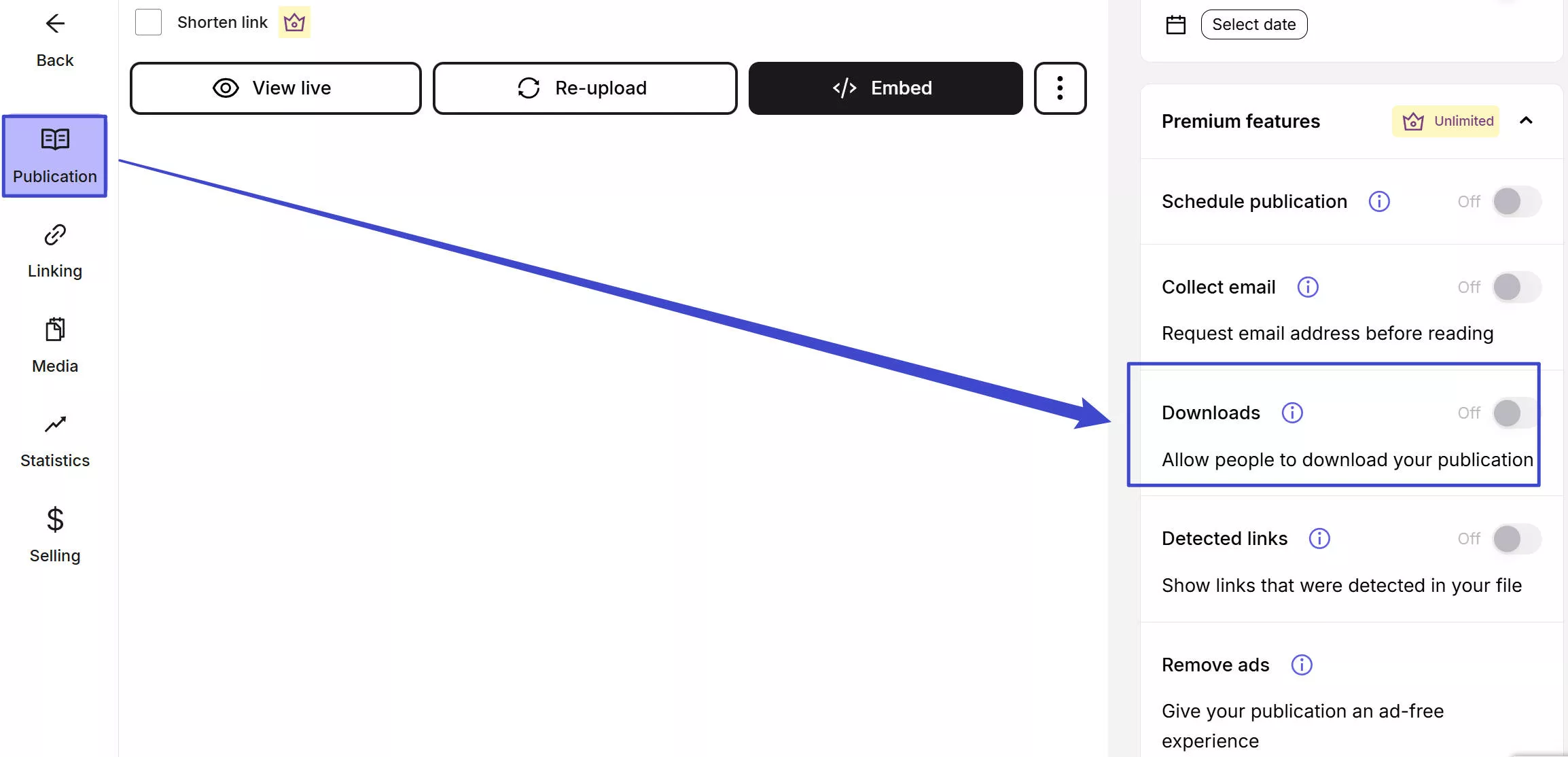
If the publisher allows, then some of the Issuu publications would already come with direct downloads.
How to Check for Direct Downloads
Log in to your Issuu account.
Open the publication you want.
Look for a Download button near the toolbar or document details.
If available, click it to save the PDF to your device.
When this feature is enabled, the option presents itself as the safest and simplest one.
Method 2: Browser Extensions
Bypassing the direct download option, browser add-on helper tools can help you get Issuu publications.
How to Use a Chrome Extension
Visit the Chrome Web Store and try to find tools such as Issuu Downloader.
Add the extension to your browser and switch it on.
Launch the wanted Issuu paper.
Press the extension icon and direct yourself according to the given steps to create a PDF.
Using extensions is very practical; however, it is advisable to use them only from reputable sites to be safe and avoid any risks.
Method 3: Save Using the Print to PDF Feature
Most modern web browsers come with the ‘Print to PDF’ feature, which is very helpful for saving Issuu pages.
Steps to Use Print to PDF
Start with the Issuu document.
Go to the corresponding command: Ctrl + P (Windows) or Cmd + P (Mac).
Now you will be prompted to choose your PDF file destination, so select Save as PDF.
Next, you can specify the page range, margins, and layout.
Finally, the file can be saved to your device.
This technique works wonders when you need to download just a few pages.
Method 4: Online Issuu-to-PDF Tools
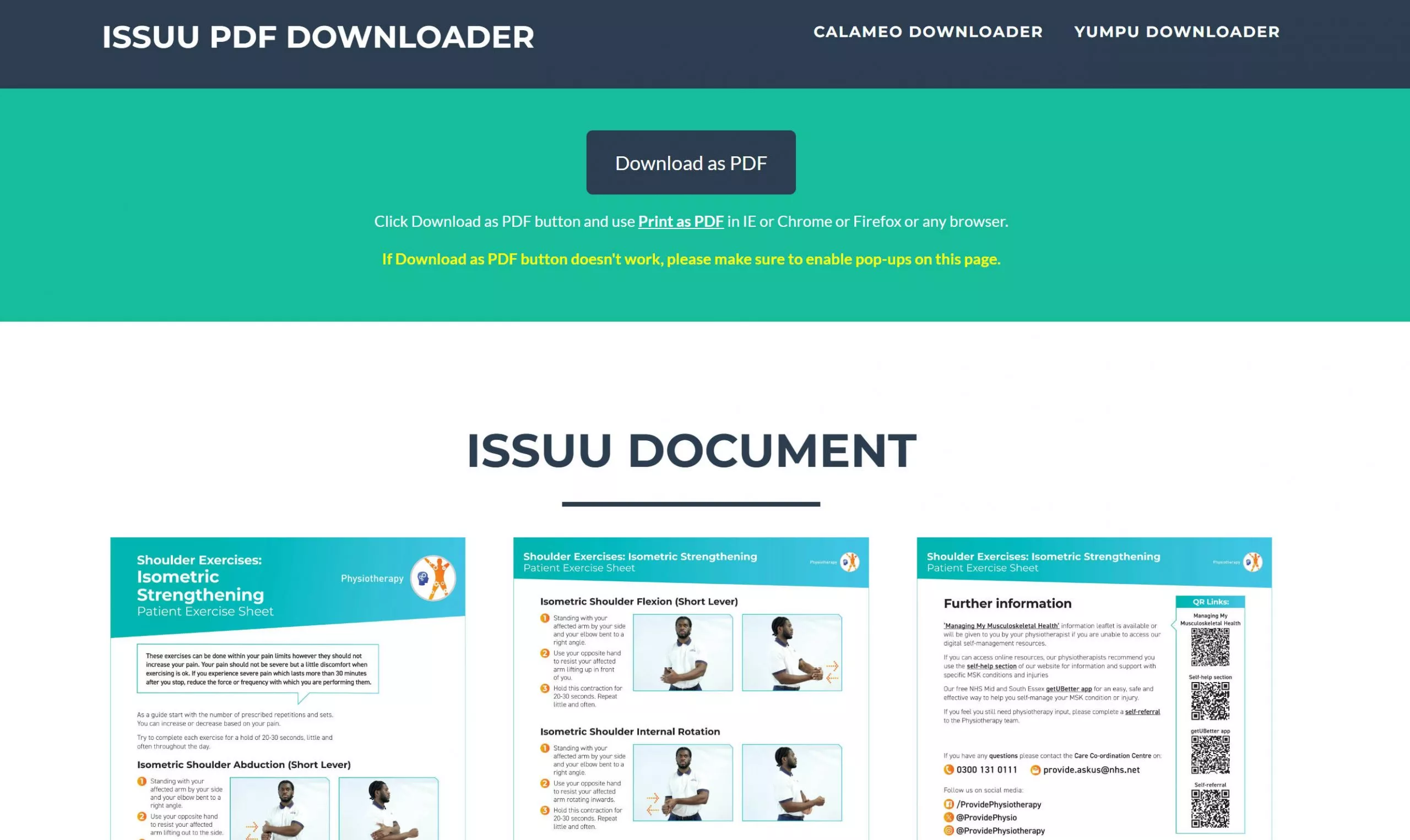
A number of free online tools let you convert Issuu publications into PDF format.
How Online Tools Work
Get the URL of the Issuu publication you want.
Go to a reliable Issuu downloader website.
Enter the link in the input box.
Convert and download the PDF.
These tools are quick but should be used responsibly.
Editing and Managing Your Downloaded PDFs
Once the downloading is done, it might be the case that you will need to edit or organize your PDFs. Tools such as PDF Agile provide the following features and more:
Modifying the text, images, and links
Turning PDFs into Word, Excel, PPT, or pictures
Marking and highlighting with notes
Changing the order of pages or removing them
Optical character recognition (OCR) for the scanned documents
Managing multiple files at once and having security choices.