
The Ultimate Guide: How to Transfer Contacts from iPhone to Android
A lot of people switch from iPhone to Android and face one main worry—keeping their contacts safe. Without those numbers, it becomes hard to call or stay connected with important people daily. That is why many users look for easy methods on how to transfer contacts from iPhone to Android. This guide will help you discover a few effortless and clear ways to move contacts quickly and safely.
Part 1. Understanding the Challenges When Transferring Contacts from iPhone to Android
Changing phones can be an exciting idea, apart from the problems that come unexpectedly when moving contacts between 2 phones. Below, we will explore a few common challenges people face when transferring contacts:
- Format Mismatch: Both devices usually save contacts in different file formats, which creates compatibility problems during transfer. Without conversion, contacts may not appear correctly, making it difficult to access important names and numbers later.
- Cloud Dependence: iPhone contacts mostly remain stored in iCloud, while Android devices rely heavily on Google accounts for synchronization. This difference in storage services often confuses users, especially beginners who feel lost between separate cloud systems.
- App Limitations: Many default apps lack built-in features to transfer all contacts smoothly between two different types of devices. Without such support, users depend on external services, making the best app to transfer contacts from iPhone to Android essential.
- Compatibility Issues: Not every export file created for iPhone is always accepted by Android software, leading to difficulties. Different system rules for handling identical information can cause errors, making it harder to keep everything together.
- Internet Requirement: Some methods only work with strong and stable internet connections, which is not always possible in remote locations. Poor connectivity makes the process slow and sometimes results in failure, forcing repeated attempts to transfer contacts.
Part 2. The Best Solution: Using MobileTrans to Transfer Contacts from iPhone to Android
When it comes to moving contacts quickly and safely, MobileTrans is the most reliable choice. This tool is designed to make switching devices stress-free, especially when moving from iPhone to Android. Unlike complicated manual methods, it offers a simple process that saves time and avoids errors. This dedicated tool allows you to transfer over 18 types of data, including contacts and messages.
It supports more than 6000 devices across iOS and Android, ensuring broad compatibility for smooth switching between phones. Users can even copy photos, videos, and other files from phones directly onto computers for extra backup and safekeeping. If needed, iCloud information can also be transferred directly from an iPhone account onto an Android device securely. Compared with Bluetooth sharing, its phone-to-phone transfer is faster and does not require internet connections.
Key Features
- Selective Transfer: Choose specific file types to move instead of transferring the entire device content together.
- No Overwrite: Copy data safely to a new device without erasing or overwriting already existing content.
- Secure Transfers: Ensures data privacy during transferring, keeping personal and professional information always entirely protected.
Instructions to Transfer Contacts from iPhone to Android Using MobileTrans
Take guidance from the comprehensive steps given below to learn how to transfer contacts from iPhone to Android:
Step 1. Run Phone to Phone Transfer Tool
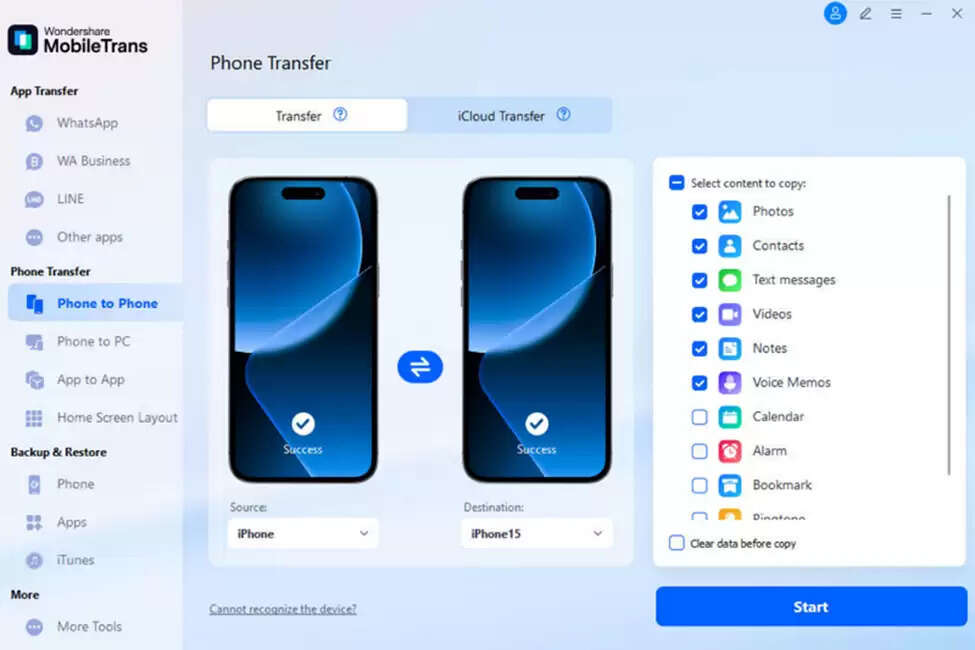
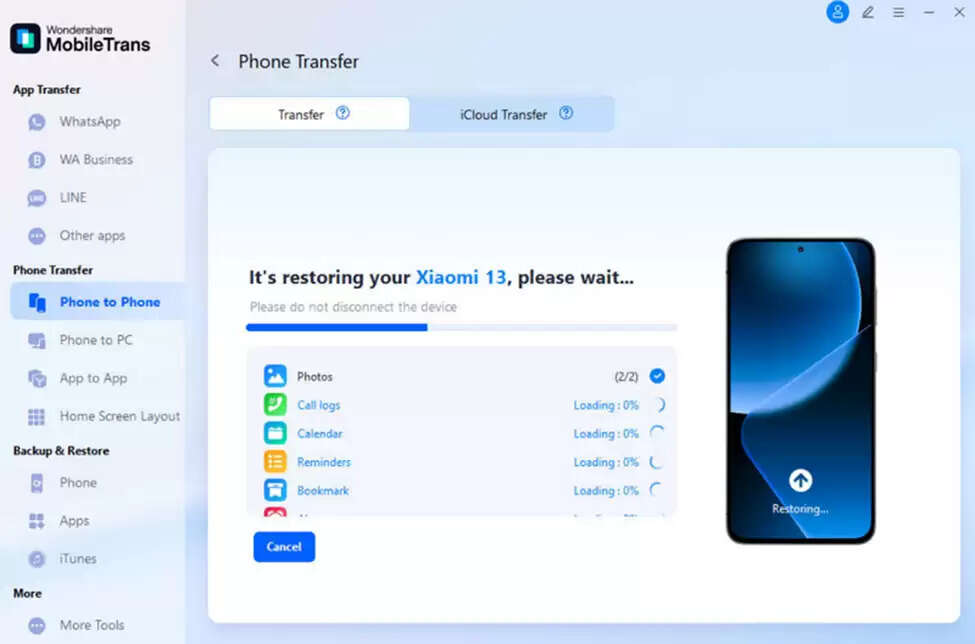
As you download and open MobileTrans, head to the “Phone to Phone” tab under the “Phone Transfer” section. Afterward, link both your Android and iPhone to the PC using the respective USB cables.
Step 2. Choose Contacts to Migrate to Your Android
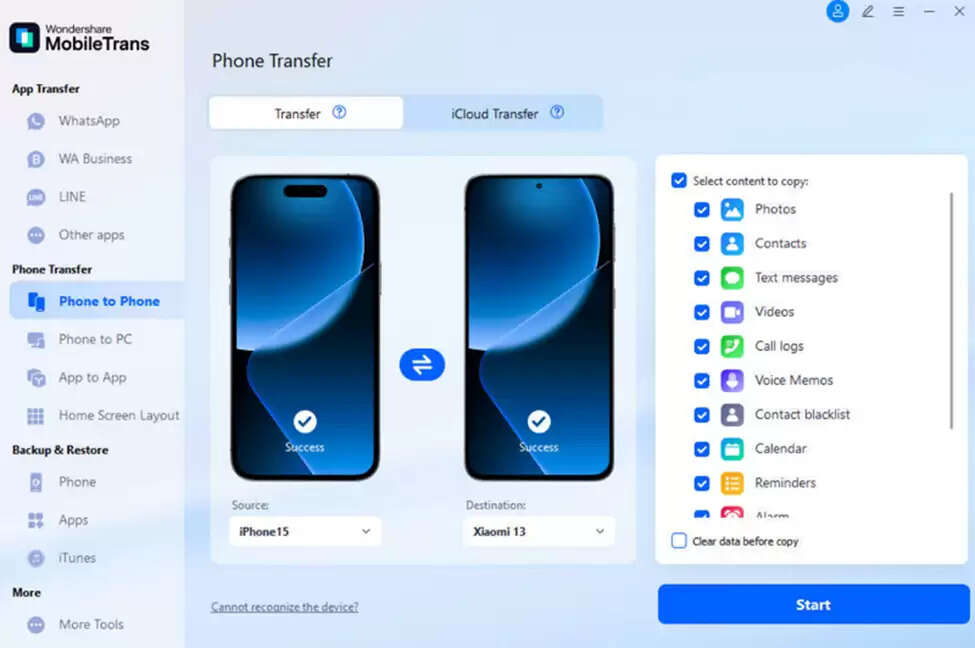
Upon connecting and seeing your “Android” as a “Target” device, choose “Contacts” and click the “Start” button.
Step 3. Receive iPhone contacts on Your Android
You will then see a progress bar showing the real-time transfer of your contacts between phones.You will then see a progress bar showing the real-time transfer of your contacts between phones.
Part 3. 5 Other Methods: How to Transfer Contacts from iPhone to Android
Besides MobileTrans, there are other practical ways to move your contacts between devices. Thus, this part will help you cover other methods when you don't want a desktop app to transfer contacts from iPhone to Android:
Method 1: Using vCard
The vCard method offers a reliable option for moving contacts between different devices with ease. It creates a universal file format that both iPhone and Android can read. Although it works without depending on constant internet access, you can quickly share contacts from iOS to Android via email. Anyway, review the given steps below to find out how you can share contacts from iOS to Android using this approach:
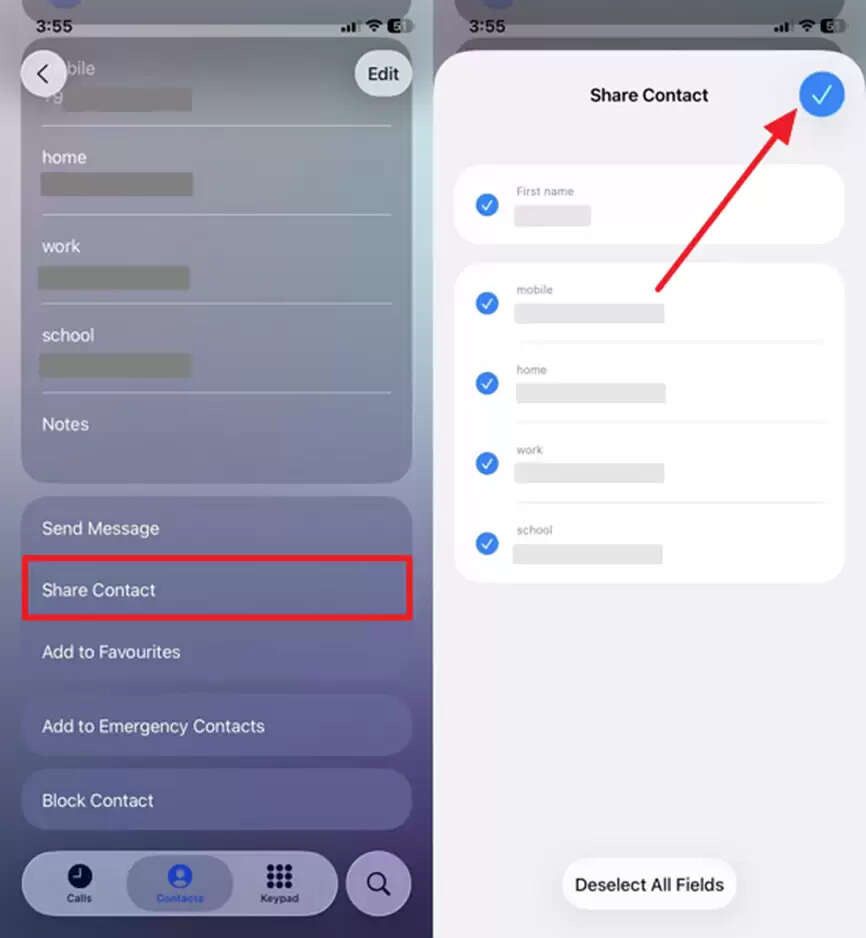
Step 1. To initiate, select your desired contacts on the iPhone to choose the “Share Contacts” option and then tap the “Tick” button.
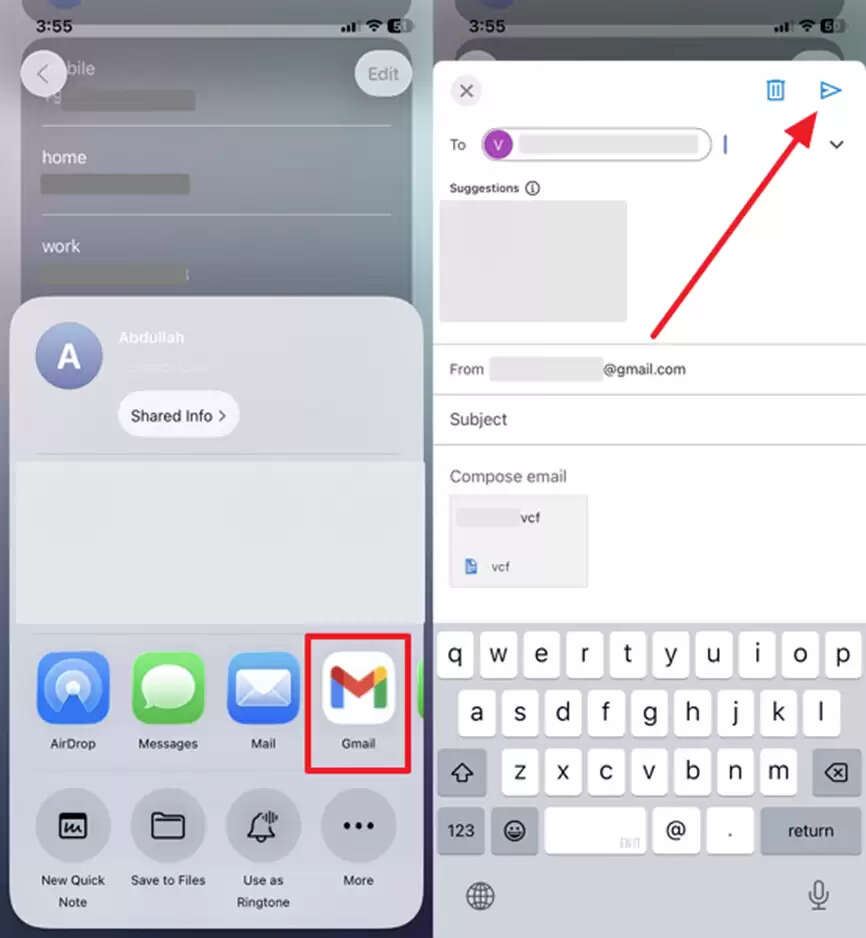
Step 2. Afterward, opt for the “Gmail” platform, add your Android Gmail address, and press the “Send” button.
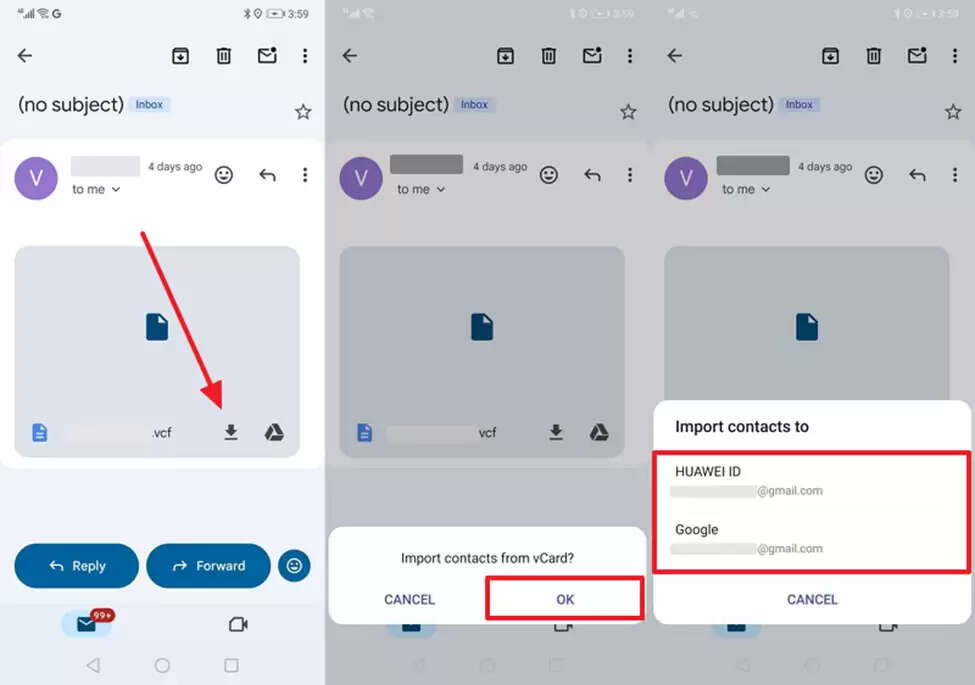
Step 3. On your Android, open the received VCF file and tap “OK” upon seeing the “Import Contacts From vCard” menu. Here, you can choose your desired account where you want to save the contact.
Method 2: Messaging App
Messaging apps offer another quick way to send contacts from an iPhone to an Android without complicated steps. You can share specific numbers directly through chat apps like WhatsApp or Messenger. This method provides flexibility as you only transfer selected contacts instead of the full list. Since messaging apps are widely available, adhere to the following instructions to send contacts from an iPhone to an Android using the famous WhatsApp app:
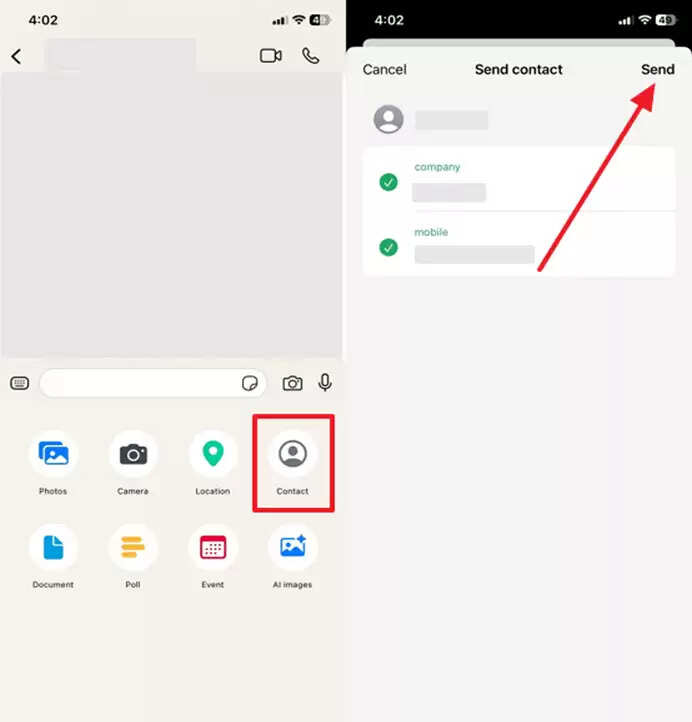
Step 1. Once you access the chat screen on WhatsApp, tap the “+” button and choose the “Contacts” option. After that, opt for your preferred contact and press the “Send” button to transfer it.
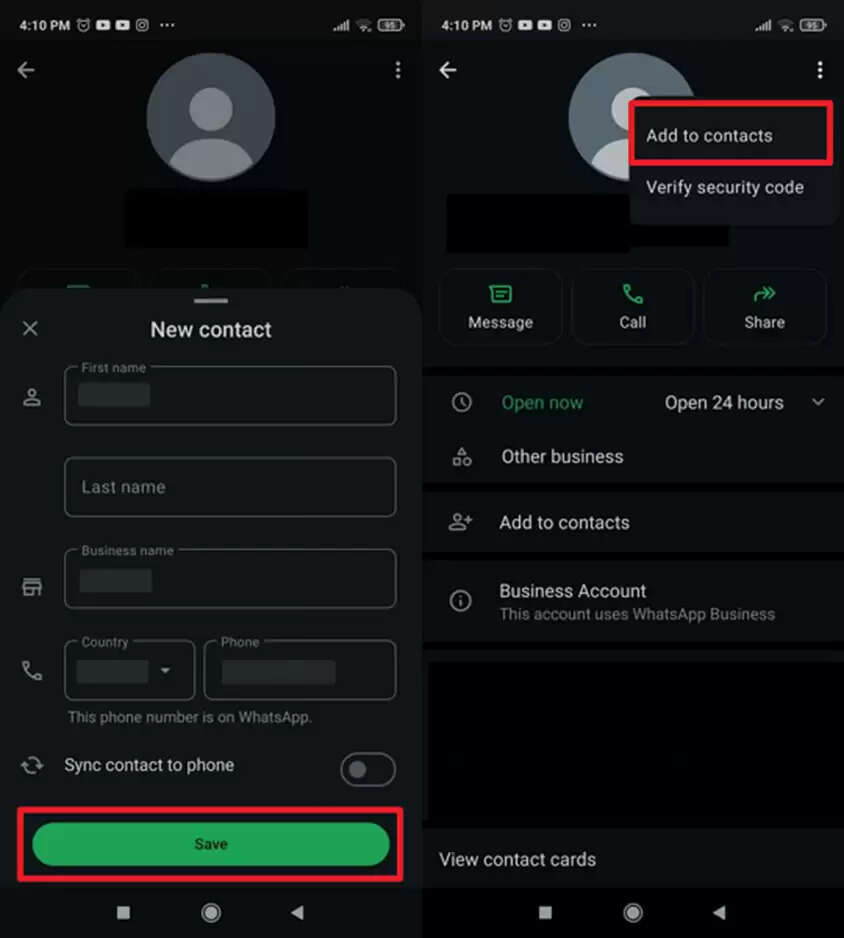
Step 2. As you access the newly sent contact through WhatsApp on your Android, tap on the number and then hit the “Save” button. Subsequently, press the “Three Dots” icon at the top to select the “Add to Contacts” option.
Method 3: Via Android Switch/Smart Switch
Android Switch or Smart Switch is a built-in solution that helps move contacts without difficulty. It allows you to transfer not just contacts but also photos, calendars, and other files safely. Many users consider it the best app to transfer contacts from iPhone to Android because of its ease. With wired or wireless connection support, the process becomes simple and quick, as you can discover in the steps below:
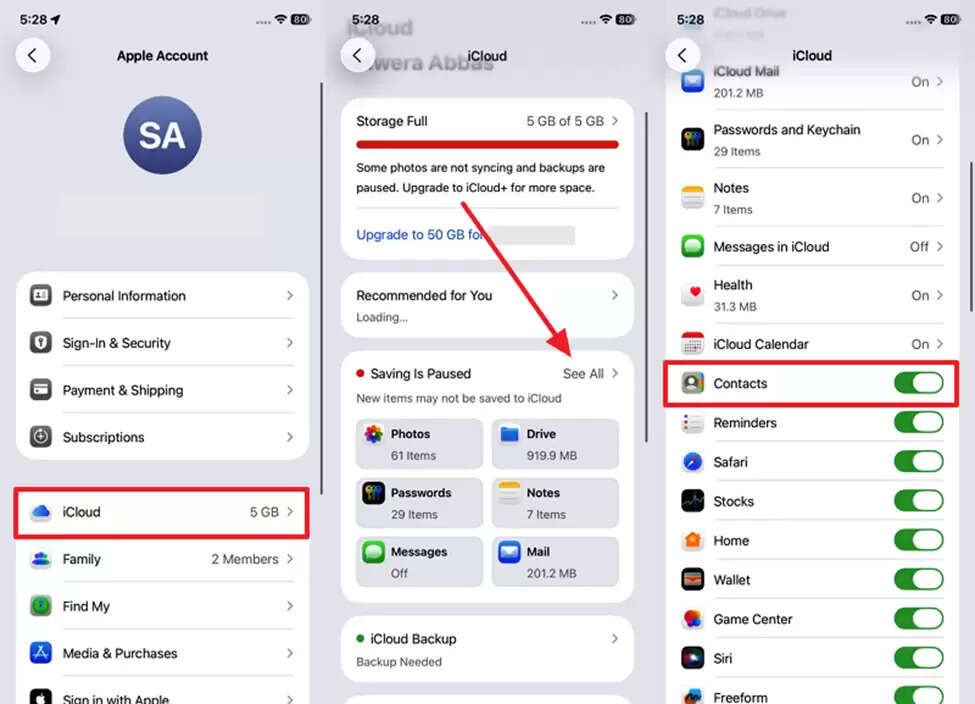
Step 1. Start by accessing the “Settings” app on your iPhone and heading to the “Apple Account” section. Here, go to “iCloud,” tap the "See All" option, and then enable the "Contacts" toggle.
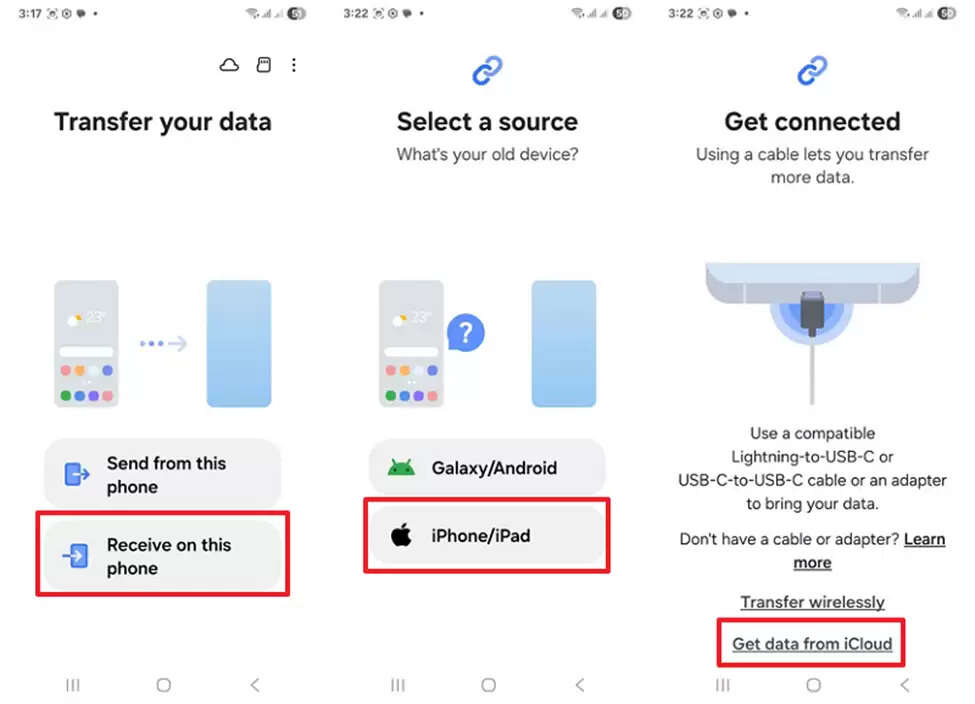
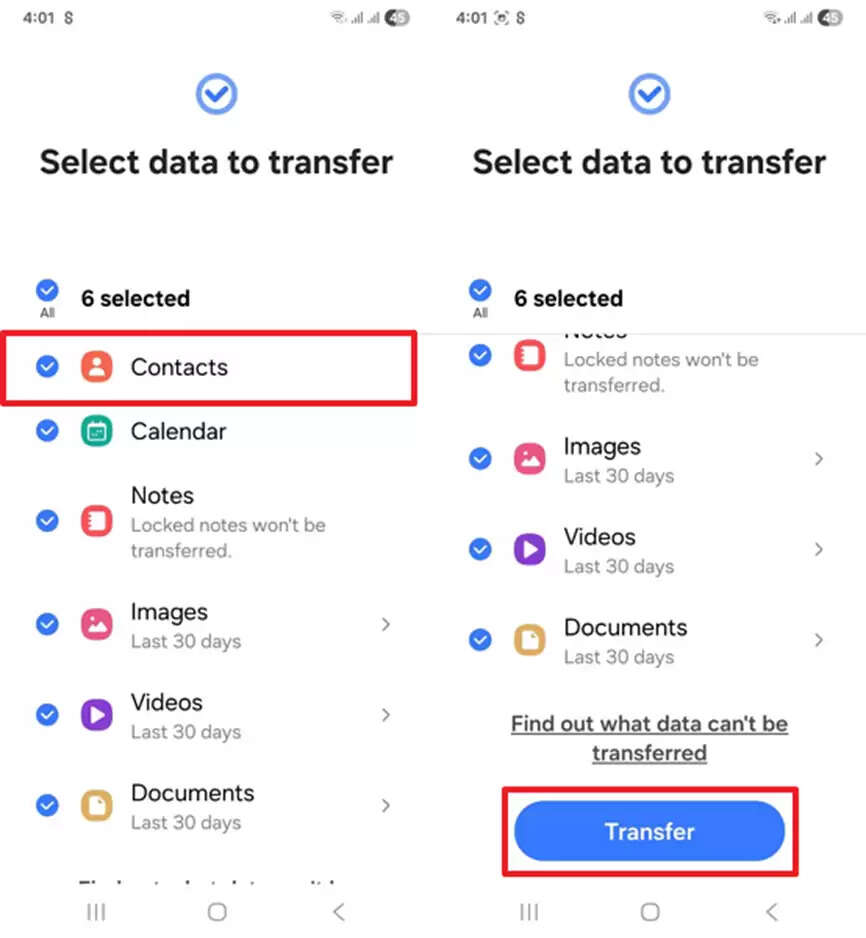
Step 2. Upon launching the “Smart Switch” app on your Samsung, tap the “Receive on This Phone” option and then opt for “iPhone/iPad.” Afterward, choose the “Get Data From iCloud” option and sign in with your iCloud credentials.
Step 3. Once done, select “Contacts” and hit the “Transfer” button to get iPhone contacts on your Android.
Method 4: Sync Google Account
While exploring the top methods, syncing a Google account is another easy way to move contacts safely. By enabling sync, your iPhone contacts can be stored in Google and then appear automatically on Android. This method removes the need for files or manual transfers, keeping everything updated without extra effort. To find out how you can use this technique to share contacts from iOS to Android, simply go through this guide:
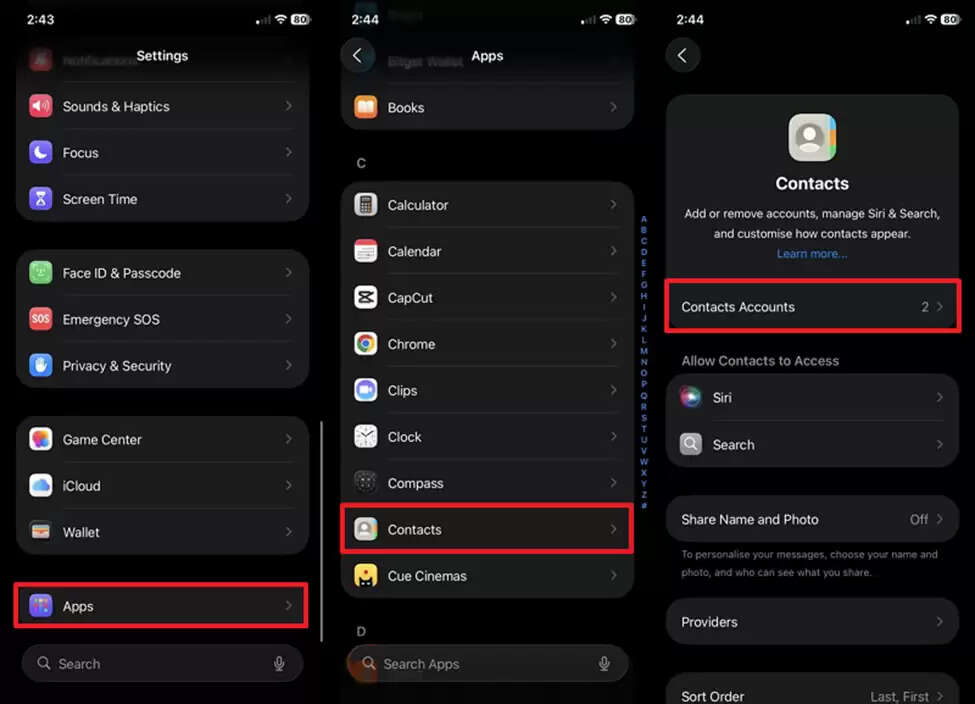
Step 1. Upon accessing your settings app, head to the “Apps” section to select the “Contacts” app. After that, you need to go to the “Contacts Accounts” section in order to move forward.
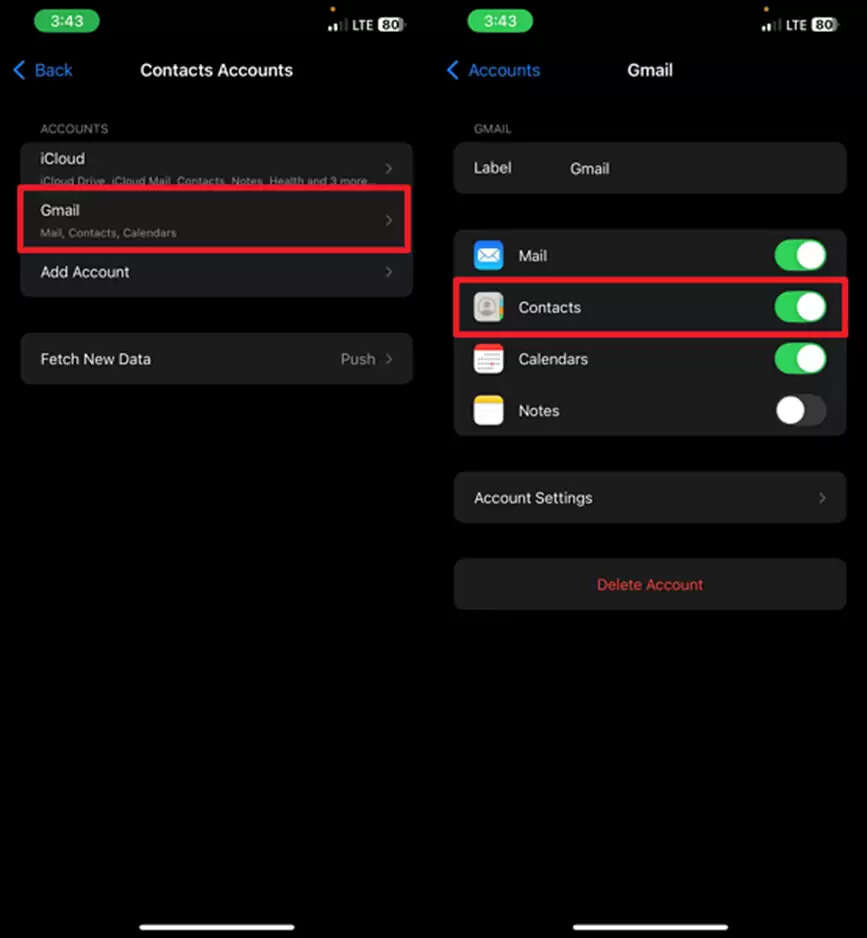
Step 2. Going ahead, choose the "Gmail" account and then enable the "Contacts" toggle.
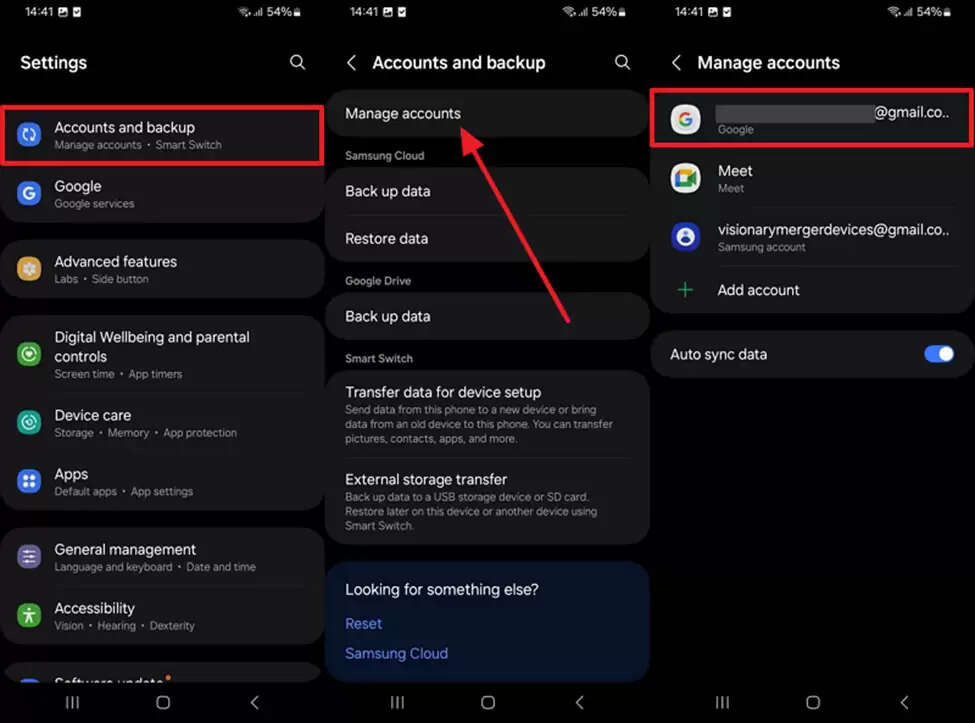
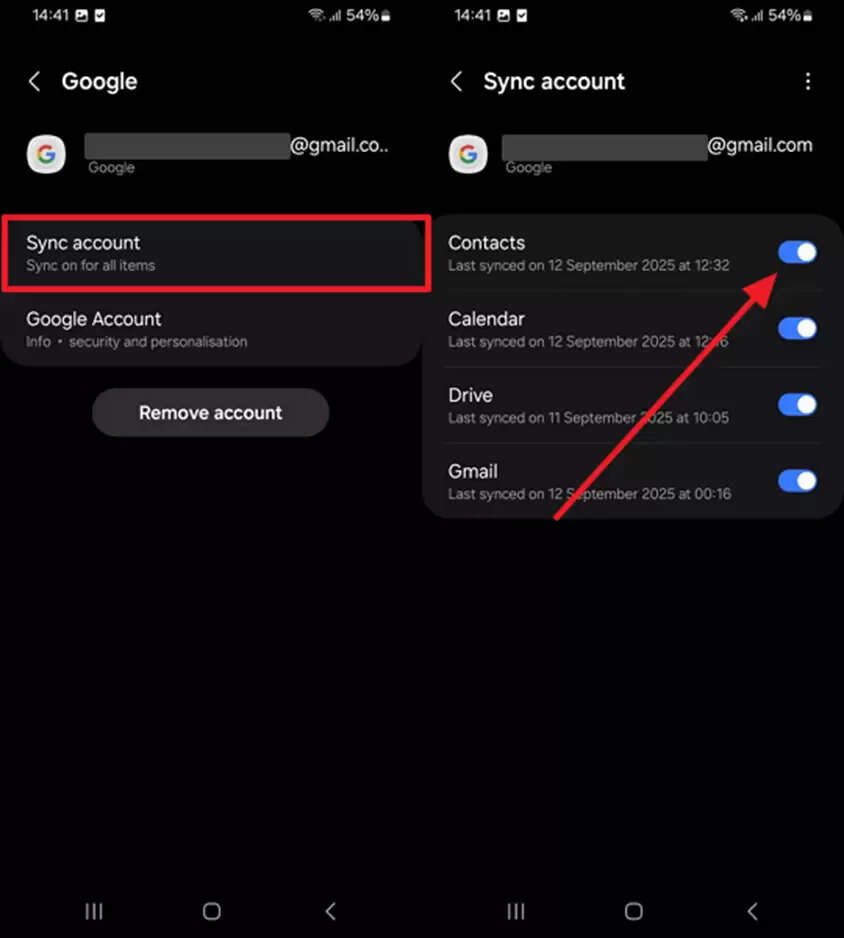
Step 3. Afterward, access your Android's settings app and navigate to the "Accounts and Backup" section. Next, choose the "Manage Account" option and then tap on your "Google Account" where you recently synced contacts on your iPhone.
Step 4. Moving ahead, access the “Sync Account” section and toggle “Contacts” to get the iPhone’s contacts.
Method 5: iCloud & Google Contacts
The iCloud and Google Contacts method gives a simple way to move contacts across platforms. It works by exporting your saved iPhone contacts from iCloud and importing them into Google. Once finished, all details appear automatically on your Android device without much effort. However, it actually requires syncing your Google Contacts on your Android. Anyhow, you can follow the steps below to send contacts from an iPhone to an Android using this method:
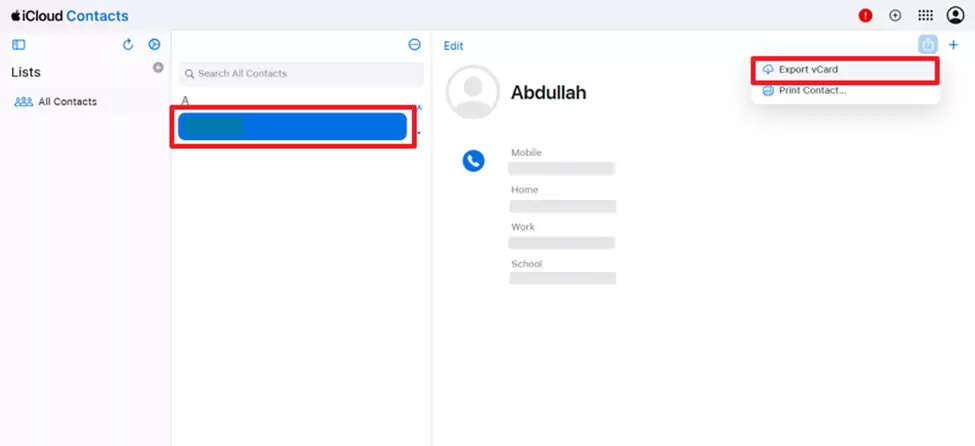
Step 1. Once you access the “” on your computer, navigate to the “Contacts” app and select the contact you want to transfer. Then, click the “Export” icon and choose the “Export vCard” option to save the contact.
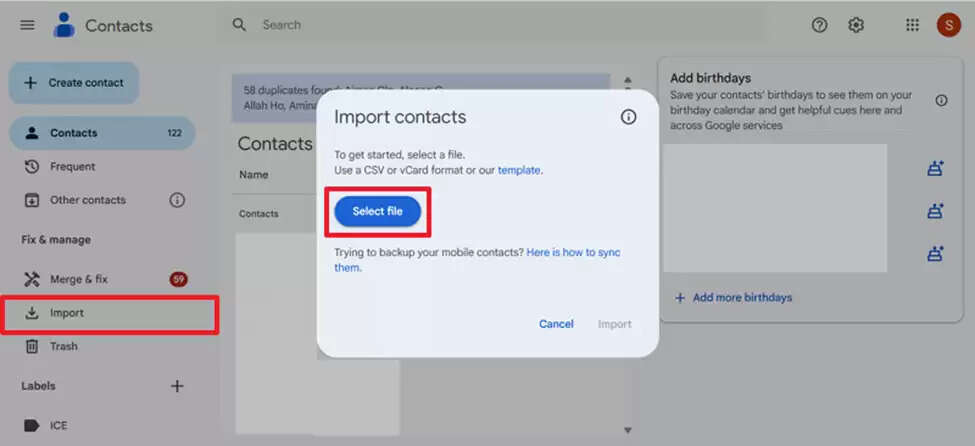
Step 2. Open the "Google Contacts" website on your computer and click the "Import" feature. After that, press the "Select File" button and import your recently exported vCard file from iCloud.
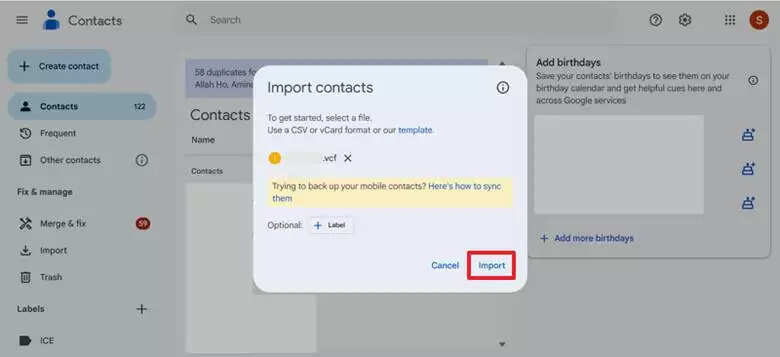
Step 3. Upon importing, click the “Import” button to successfully import the contact to your Google account, which you can access on your Android as well.
Conclusion
In conclusion, switching from iPhone to Android can feel tricky, especially when you need to keep all contacts safe. This article has explored several quick and effortless methods to help you learn how to transfer contacts from iPhone to Android. Each approach has its own strengths, but they may still involve extra steps or limits. For a faster, safer, and complete solution, we strongly recommend using MobileTrans for smooth transfers.