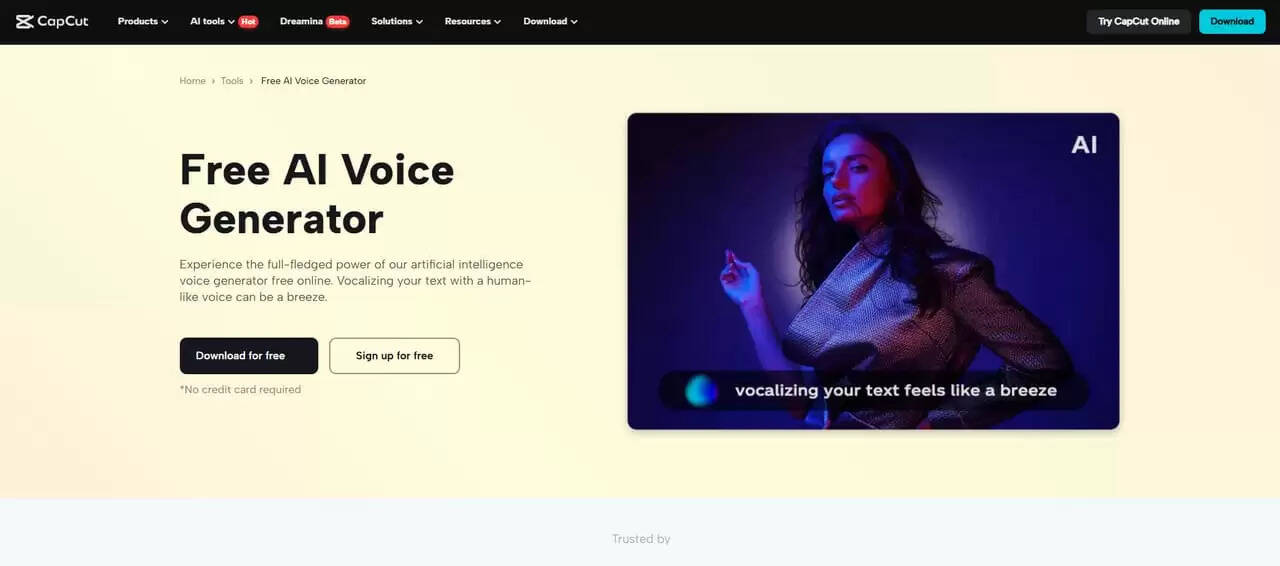
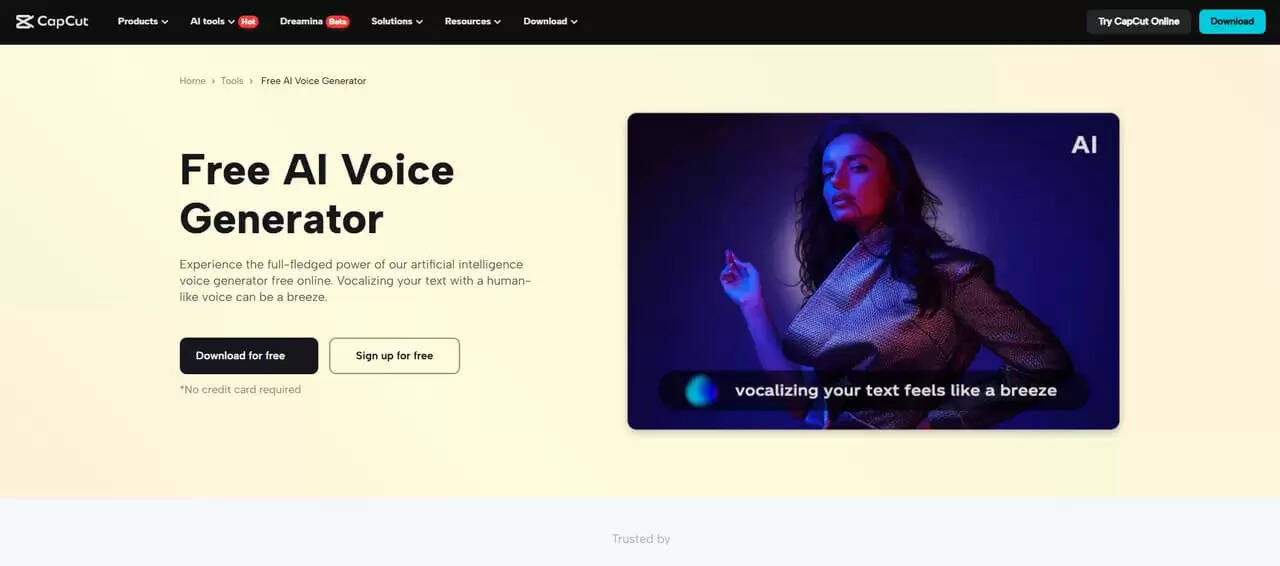
If you are a music producer, a DJ, or a YouTuber, you will realize how important it is to provide your sound with that little extra. Adding voice tags at the start and end of your tracks will help listeners recognize your work.
These short intros and outros provide your material with a more professional and polished look. Most artists employ voice tags as part of their branding. With CapCut PC, you need not outsource a voice actor or buy studio time.
Its Text-to-Speech AI function lets you create clean and catchy voice tags within minutes. AI voice generator features enable you to select a voice that fits your musical genre and makes your beats sound completely yours.
Why TTS for Music Intro & Outro Voice Tags?
Voice tags are not just words. They introduce individuals to who you’re all about. An intro or outro is a good means of getting your track heard. It defines your identity and leaves an imprint on your sound. Tags are also used by many artists to prevent their work from being pirated.
Text-to-Speech is a better choice here. You don’t need to use your voice or hire someone else. The tone of voice is consistent with all your tracks. You can pick from plenty of voices, accents, and styles. This means you can get the right sound for your music.
Software like an AI voice generator is easy to play around with different options. You can also use an AI video upscaler to polish your video if you include images. Both are great tools for helping your work sound and look more professional. TTS voice tags are an easy way of adding that extra touch of personality and pizzazz to your music.
How CapCut PC Helps in Creating Voice Tags
It is simple to create voice tags with the help of CapCut Desktop Video Editor. If you are producing videos, apply an AI video upscaler for their betterment. No special skills or sound recording equipment are needed. Just launch the software, click on the “Text” tab, and choose the “Text-to-Speech” option.
You have a broad range of voice types to choose from, male, female, soft, deep, or even robotic. The voices also come in different languages. This allows you to select a tone for your tag that can complement your music style.
You may even add background music or simple effects under the voice. Navigate to the “Audio” tab to insert background sounds and adjust volume levels for a balanced mix. The setup is easy and simple to use. You have a preview of the tag before creating it and can easily modify it.
Utilizing an AI voice generator, your branding stays the same and sounds identical on all tracks. The software has a pre-installed Text to Speech AI feature that can be utilized conveniently for music introduction and ending.
Step-by-Step Guide to Creating Voice Tags with CapCut PC
Step 1: Install CapCut PC
Visit the official CapCut website and download the desktop version compatible with your Windows or Mac computer. Open the installer file and follow the on-screen setup instructions. The process is quick and easy. While the basic version is free, some advanced features may require a paid subscription after installation.
Step 2: Add Your Tag Line
Open CapCut PC and start a new project. Click on “Import” to import a blank video or waveform background. Next, navigate to the “Text” tab and choose “Text to speech”. Enter your voice script into the provided text box. You can use a line like “DJ Max in the Mix” or “You’re listening to Studio Beats.”
Step 3: Select Voice & Personalize Settings
Select a voice that fits your music. Choose male, female, deep, clear, or robotic voices. You can find these in “Text to speech” settings. Adjust the pitch and speed settings to customize and shape the voice to match your desired tone.
Then, go to the “Audio” tab if you want to add background music or ambient sounds. Drag the audio tracks onto the timeline, then fine-tune the volume levels to ensure a balanced and clear sound mix.
Step 4: Export the Tag
Click on “Export” at the top-right corner of CapCut PC. Choose to save your project as either a video or audio file. If you’ve used a premium AI voice or selected high-quality export settings, CapCut PC may prompt you to make a payment before completing the export process.
Conclusion
Adding intro and outro tags through CapCut Desktop Video Editor is a smart method to set up your music brand. Its Text-to-Speech AI feature gives you full control of the tone and voice of each tag. You don’t need to record yourself or have someone else record it for you. The process is quick and easy, and the outcome sounds crisp and professional.
While all the features come at no cost, some export quality or voices may require you to pay. However, the tool provides everything you need to stand out and create unique, customized content.
Get CapCut PC today from its official website and begin making voice tags that speak for your sound.
About the Author