Digital storage devices often fail when you need your important files the most. A sudden error message can make your valuable documents feel completely lost forever. Many users face frustration when their computer fails to recognize a storage chip. Without proper guidance, lost files may feel gone forever, leaving frustration behind.
Understanding “memory card damaged, how to recover data” is essential for modern users. Reliable software solutions now offer a professional way to restore your digital files. You can retrieve essential lost data without advanced technical skills. So, this guide provides clear instructions to help you fix these common technical errors.
Part 1. Why You Need a Memory Card Recovery Tool
Part 2. How to Choose the Best Memory Card Recovery Tool – 5 Considerations
Part 3. Use the Top Tool to Recover Data Using a Memory Card Recovery Tool
Conclusion
Part 1. Why You Need a Memory Card Recovery Tool
Sometimes an SD card recovery process is the only way to save your files. Below are the main reasons why you must use a special tool right now to recover lost files:
- Accidental Deletion: You may delete your valuable files by clicking on the wrong button on your screen. So, essential memories or documents can be lost forever without the appropriate recovery tool.
- Card Formatting: Sometimes, you might format your card and lose every single piece of data. All data on the memory card becomes invisible and unusable after formatting.
- Power Failures: Sudden shutdowns during saving can make files incomplete or unusable. Files may be gone or appear broken without warning on the memory card.
- System Errors: A broken file system can make your computer show the card as empty. Even a physically broken micro SD card recovery may be needed if errors persist.
- Bad Sectors: Sections of the card can fail, permanently making some files unreadable. Files stored in these damaged areas may disappear or cause errors.
Part 2. How to Choose the Best Memory Card Recovery Tool – 5 Considerations
Picking the right software is vital for a memory card broken recovery task. This section explains key factors for selecting a reliable tool for safety:
- File Types: You need a tool that can find every kind of lost digital file. This helps when your card hides many different documents or large videos.
- Scan Options: Deep scan and signature scan modes can detect lost files even from corrupted or formatted cards. These scans reconstruct data reliably, improving chances of full memory card recovery.
- Read-only Mode: The tool should only read the card and not write new data. You need this safety to stop the card from losing more old files.
- Preview Feature: Preview lets you verify recovered files before restoring them safely. Skipping the preview risks restoring damaged files that cannot be used afterward.
- Folder Structure: A good tool keeps original folders and filenames intact during the recovery process. Maintaining the original structure prevents confusion and makes file restoration easier.
Part 3. Use the Top Tool to Recover Data Using a Memory Card Recovery Tool
When your SD card suddenly stops working, you urgently need a reliable memory card recovery tool. For this need, Recoverit V14 is the best option to recover data from damaged or broken cards. This modern tool can recover more than 1,000 file formats, including documents and Outlook files. The program performs a deep scan inside the memory card to find hidden files.
During the recovery process, this software uses read-only mode and never overwrites the original data. You can preview your recovered file before saving it through the Data Recovery tool . It handles 10,000+ data loss scenarios, such as accidental deletion and card formatting. This platform now allows users to recover data up to 500 MB without paying a single penny.
Key Features
- RAW Recovery: Recovers data from RAW file system cards unreadable by systems or devices.
- Selective Restore: Allows getting back only selected files instead of all data to save time.
- Malware Recovery: Restores files destroyed by malware or virus attacks without harm or loss.
Complete Guide on How to Recover Data from Damaged or Broken Cards
You need to go through the given guide to recover missing data from damaged memory cards:
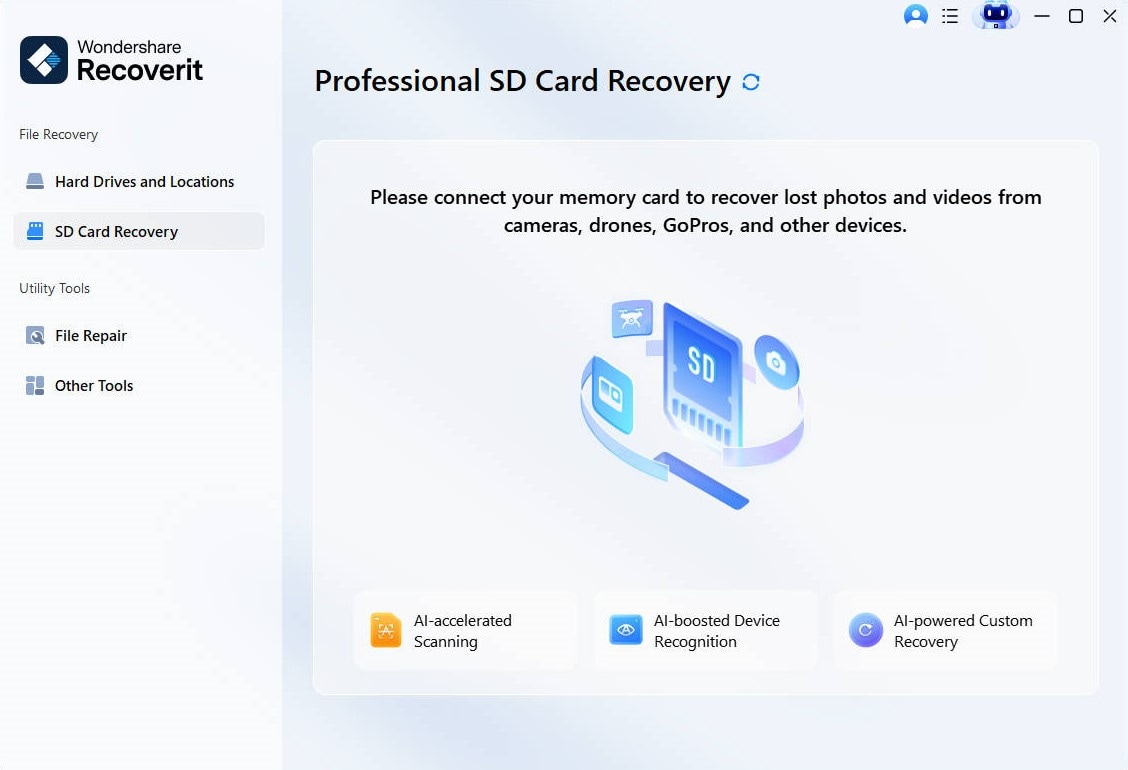
Step 1. Launch the SD Card Recovery Feature
Connect your memory card to the computer correctly, then select the “SD Card Recovery” feature from the tool’s main screen.
Image name: memory-card-damaged-how-to-recover-data-1.jpg
Image alt: connect sd card access recovery feature recoverit
Image Link: https://images.wondershare.com/recoverit/data-recovery/sd-without-sd-card-win.jpg
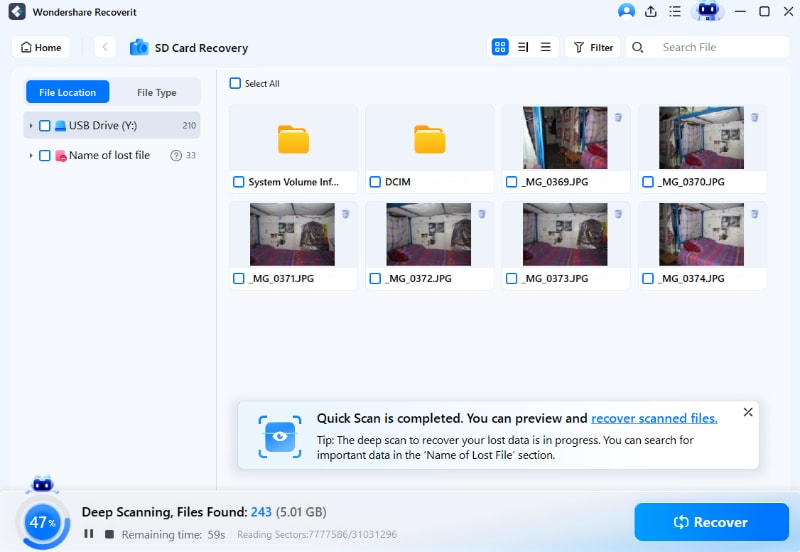
Step 2. Scan the SD Card for Lost Files
Select your SD card from the displayed list of storage devices. The program will begin a quick scan automatically to find lost data.
Image name: memory-card-damaged-how-to-recover-data-2.jpg
Image alt: scan the sd card in recoverit
Image Link: https://images.wondershare.com/recoverit/data-recovery/sd-scanning-win.jpg
Step 3. Preview and Restore Your Data
Once scanning finishes, check the recovered files using the preview option. Select the files you need and click the “Recover” button to save them securely.
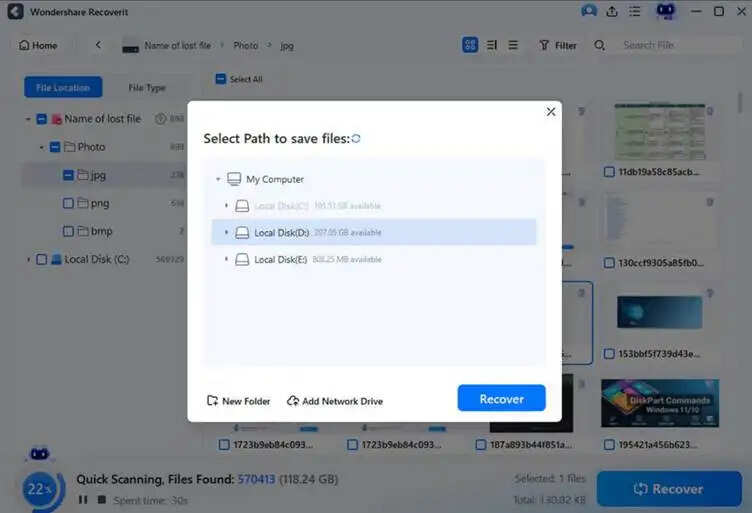
Image name: memory-card-damaged-how-to-recover-data-3.jpg
Image alt: recover lost data via recoverit
Image Link: https://images.wondershare.com/recoverit/data-recovery/computer-select-path-save.jpg
Comparison Table Showing Why Recoverit Outperforms Other Memory Card Recovery Tools
When your storage suddenly fails, memory card crash recovery becomes urgently necessary. Review the comparison table below to see how Recoverit performs better than other tools:
|
Feature |
Why Recoverit Is Better |
|
Enhanced Video Recovery |
Rebuilds fragmented 4K/8K, drone, and CCTV videos smoothly |
|
Wide Format Support |
Supports 1,000+ file types, including RAW formats |
|
Device Compatibility |
Works with 2,000+ devices like SD, microSD, and drones |
|
Bootable Media |
Creates a recovery drive for crashed systems |
|
Preview During Scan |
Lets you view files before the full scan completes |
|
Recover Mid-Scan |
Allows file recovery without waiting for the scan to finish |
|
Free Space Scan |
Scans only deleted areas to protect existing data |
|
Quick Scan Speed |
Performs a fast scan and finds files within 5 minutes |
|
High Success Rate |
Designed to improve recovery chances in deletion and formatting cases. |
Conclusion
Your files are important and losing them due to memory card damage is stressful. This guide explained memory card damaged how to recover data to help you stay calm. You now have the best steps to fix your card and save your work. However, when your card stops working and files seem gone, you need a trusted solution. Therefore, you should try Recoverit to find all your lost items.
About the Author